How to Extract Financial Tables from Scanned PDF to Excel
A hands-on tutorial that walks you through extracting balance sheets, income statements, and bank statements from scanned PDFs into Excel — safely, offline, with no cloud upload. Includes security comparison, accuracy tips, and a full software walkthrough with screenshots.
What You'll Learn in This Tutorial
- ✓ Why cloud OCR tools are risky for financial documents
- ✓ Which types of financial PDFs you can extract
- ✓ Step-by-step walkthrough: load → configure → extract → validate
- ✓ Accuracy tips specific to financial numbers
- ✓ How to validate extracted data with sum-checks
Part 1: Why Financial Documents Need Local OCR
⚠ Security Warning
Many popular online OCR and PDF-to-Excel tools upload your file to their servers for processing. When that file contains account numbers, bank balances, tax figures, or personal financial data, you are transferring that data to a third party — often with terms of service that grant broad rights to use uploaded content.
The financial data in a balance sheet is among the most sensitive information an individual or organization possesses. Consider what a scanned bank statement contains:
- Account numbers and routing numbers
- Transaction history and merchant names
- Exact account balances by date
- Personal or business identity information in the header
Uploading this to a free online OCR service means you have no control over how long that data is retained, who can access it on the server, or whether it might be used to train recognition models. The only truly safe approach for financial document OCR is 100% local, offline processing — where the file never leaves your device.
Types of Financial PDFs You Can Extract
- Balance sheets from auditors or accounting software printed to PDF and scanned
- Bank statements — many banks still send PDF scans rather than data exports
- Income statements and P&L reports from legacy accounting systems
- Invoice batches — scanned paper invoices from suppliers
- Tax returns — prior-year scanned paper tax documents
- Regulatory filings — older annual reports filed as scanned images
Part 2: Step-by-Step Tutorial — Extract Financial Tables to Excel
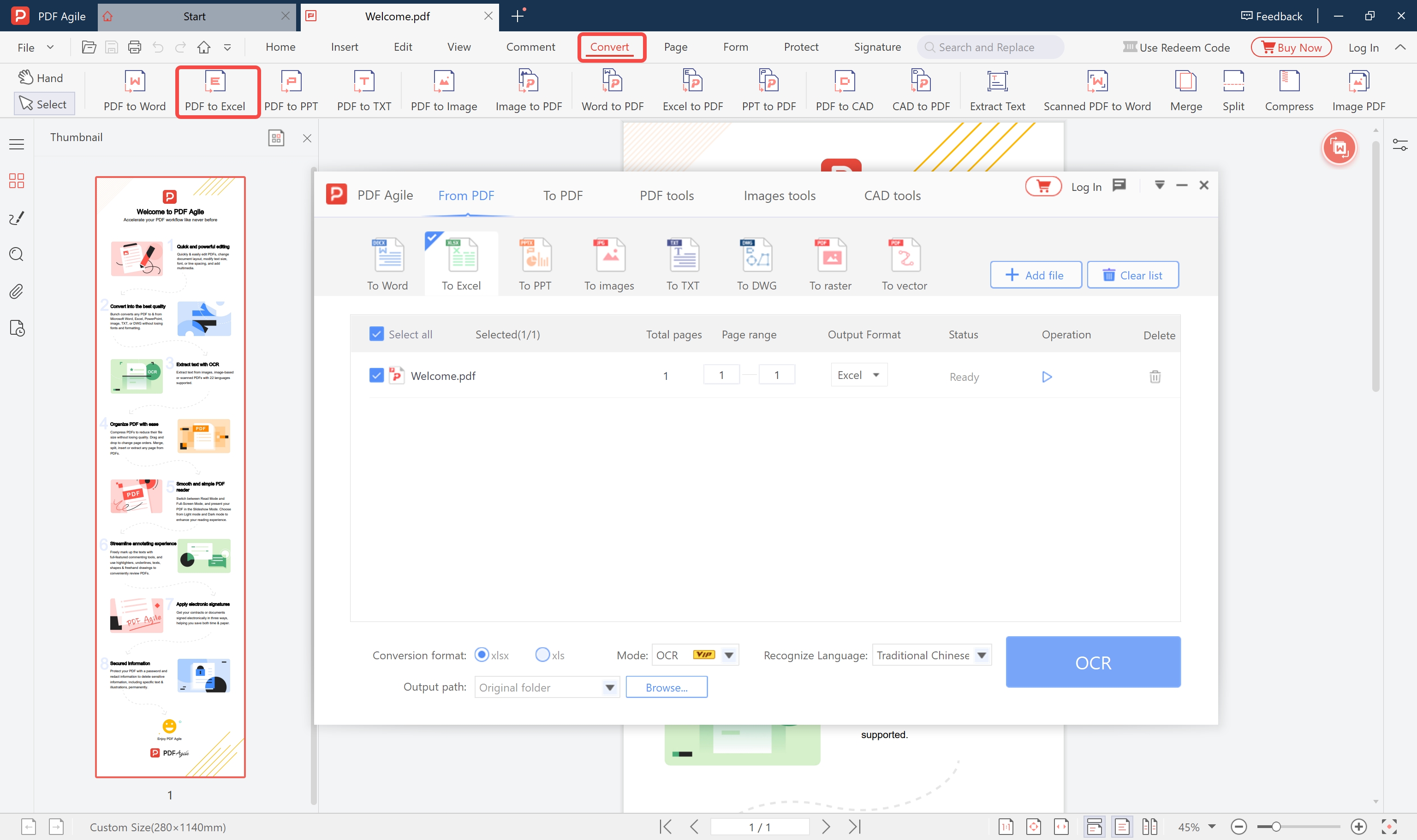
Open PDF Agile and Navigate to the Convert Tab
Launch PDF Agile on your Windows PC. Click the Convert tab in the top ribbon menu. As shown in Figure 1, the conversion panel opens with "From PDF" selected by default. Click "To Excel" in the format row to set your output format.
Optional security step: Disconnect from the internet for maximum security. PDF Agile processes all files 100% locally — it does not need an internet connection for OCR. Disconnecting removes any theoretical risk of automatic data transmission.
Load Your Scanned Financial PDF
Click "+ Add file" to load your scanned financial PDF, or drag the file directly into the interface. For multi-page statements (e.g., a 12-month bank statement), the file list shows the total page count and lets you set the page range for processing.
As shown in Figure 1, the file "Welcome.pdf" appears in the conversion queue with its page count, page range, output format (Excel), and status (Ready).
Configure OCR Mode and Language
At the bottom of the conversion panel (see Figure 1), configure these settings:
- Conversion format: Select
.xlsx(recommended) or.xlsfor older Excel compatibility - Mode: Select "OCR" — this enables text recognition for scanned/image-based PDFs. The VIP tag indicates this is a premium feature.
- Recognize Language: Choose the language of your financial document. For English-language statements, select English. For multilingual documents, choose the primary language.
Enable Smart Number Format Detection
When processing financial documents, enable Smart Number Format Detection. This tells the OCR engine to apply currency formatting ($1,234.56), percentage formatting, and date formatting to the appropriate cells rather than treating all values as plain text. This is critical for balance sheets where dollar amounts, percentages, and dates must be distinguished.
Click the OCR Button to Start Extraction
Click the blue "OCR" button at the bottom of the panel (visible in Figure 1). Processing happens locally — no upload, no wait for server response. A 10-page scanned bank statement typically completes in 15–30 seconds on modern hardware.
You can also click the play/start icon next to each file in the queue to process individual files.
Enable Confidence Highlighting and Review
Cells where OCR confidence is below threshold are highlighted in yellow in the output Excel file — giving you a visual checklist of values to manually verify. Pay particular attention to numbers containing similar digits (1/7, 0/8, 5/6) which are common OCR confusion points.
Set Output Path and Save
Choose your output location — "Original folder" saves the Excel file alongside the source PDF, or click "Browse..." to select a custom destination. Once extraction completes, the Excel file opens automatically for review.
Part 3: Accuracy Tips for Financial Documents
Scan at 400–600 DPI for Numbers
A misread digit in a financial table can have serious consequences. For financial OCR, scan at 400–600 DPI rather than the standard 300 DPI minimum. Higher resolution makes digit recognition significantly more reliable, especially for common confusion pairs: 1/7, 0/8, 5/6, 3/8.
Clean the Document Before Scanning
If you're scanning physical documents, ensure pages are flat, well-lit, and free of staple holes through the print area. Shadows from binding curls dramatically reduce accuracy along the spine of a document. Use a flatbed scanner rather than a document feeder for high-stakes pages.
Process Page-by-Page for Audited Documents
For audited financial statements where accuracy is business-critical, process one page at a time and validate each against the original before proceeding to the next. This is slower but ensures errors are caught before they propagate through a financial model.
Part 4: Cloud OCR vs. Local OCR — Security Comparison
| Factor | Cloud OCR Tool | PDF Agile (Local) |
|---|---|---|
| Data leaves your device | Yes — uploaded to server | No — 100% local |
| Data retention policy | Varies; often 24–72 hrs | N/A — no server |
| Third-party access | Possible; varies by ToS | None |
| Works offline / air-gapped | No | Yes |
| Regulatory compliance (GDPR, HIPAA, SOX) | Requires vendor audit | Inherently compliant |
| File size limits | Often 10–50 MB limit | No limit |
| Batch processing | Usually limited/paid | Unlimited, local |
Part 5: Validating the Extracted Data
The Sum-Check Method
For balance sheets, every section should sum to a known total (assets = liabilities + equity). After extraction, apply SUM() formulas to each column and compare the computed totals against the subtotals shown in the original document. Any discrepancy points to a specific misread value.
Cross-Reference Against Another Source
If you have the same financial data in another format (e.g., the bank statement scanned PDF alongside the bank's online portal export), compare row-by-row. Mismatches immediately identify OCR errors.
The Yellow Cell Review
PDF Agile highlights low-confidence cells in yellow. Review every yellow cell against the original scan before using the data in any financial model. This targeted review is much faster than checking every cell independently.
Batch Extraction for Multiple Statements
For accountants and analysts processing monthly statements from multiple clients, use Batch OCR mode to process an entire folder of scanned PDFs at once. Each file produces a separate Excel workbook. The batch log records processing time and any flagged pages per file.
A typical batch of 50 monthly bank statements (5–10 pages each) completes in 3–8 minutes on an 8-core CPU — compared to hours of manual data entry.
Frequently Asked Questions
Is local OCR as accurate as cloud-based tools?
For clean 300+ DPI scans, local OCR (PDF Agile) matches or exceeds the accuracy of major cloud tools like Adobe, SmallPDF, and ILovePDF. The advantage of local processing is security, not a trade-off against accuracy.
Can I use this for tax documents?
Yes. Scanned tax returns, W-2 forms, 1099s, and similar documents are all handled by the financial OCR pipeline. Because everything is local, you can process tax documents without any risk of data exposure.
What accuracy should I expect for financial tables?
For clean scans at 300+ DPI: 98%+ character accuracy. This means in a 500-cell table, expect 0–10 errors — almost all in the yellow-highlighted cells. Always validate totals before using in financial models.
Does it preserve merged cells and multi-row headers?
PDF Agile's table reconstruction attempts to preserve merged cell structures. Complex merged headers (common in balance sheets) are reconstructed in the Excel output. Simple two-level headers work reliably; deeply nested merges may need manual adjustment.