OCR PDF to Excel — Extract Tables from Scanned PDFs
Pull tables out of scanned financial reports, invoices, and data sheets directly into editable Excel spreadsheets. OCR detects cell boundaries in image-based PDFs — no manual retyping of numbers.
The Challenge: Tables in Scanned PDFs Have No Data Layer
When a spreadsheet or table is printed and then scanned, the resulting PDF is just an image — the rows, columns, and cell values exist only as pixels. Standard PDF-to-Excel converters can't extract anything because there's no text layer to parse. Solving this requires first running OCR, then applying table structure reconstruction on top of the recognized text.
PDF Agile handles both steps in one pipeline: OCR recognition of all cell contents, followed by table detection to map each value to its correct row and column position in the output .xlsx file.
How to Extract Tables from Scanned PDF to Excel (3 Steps)
Open Scanned PDF to Excel
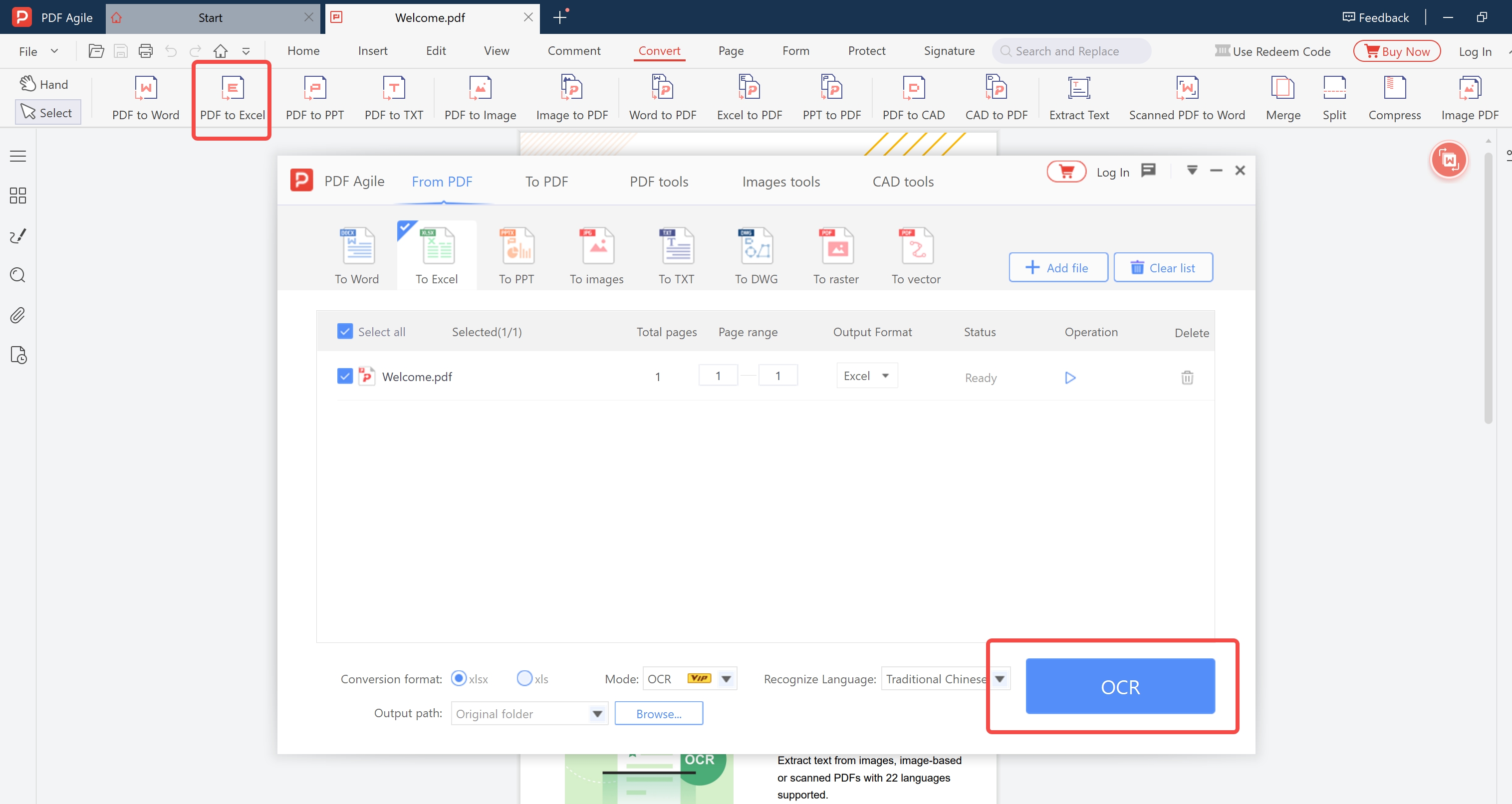
Open PDF Agile → OCR → Scanned PDF to Excel.
Load Your File
Load the scanned PDF or image containing your table(s). Select page range if needed.
Extract
Click Extract. Each detected table is placed in its own Excel worksheet tab, with all cell values in the correct row/column positions.
Key Features for Financial Data Extraction
Number Format Detection
Enable Smart number format to automatically apply currency (e.g., $1,234.56), percentage (45.3%), and date (31-Dec-2025) formatting to the corresponding Excel cells rather than storing everything as raw text.
Multi-Page Table Merging
Financial statements often span multiple pages. Enable Merge continuous tables to combine pages into one contiguous Excel sheet rather than splitting into separate blocks.
Confidence Highlighting
Low-confidence recognized cells are highlighted in yellow in the output Excel — giving you a quick visual checklist of values to manually verify, rather than blindly trusting every number.
OCR Table Extraction vs. Other Methods
| Method | Works on Scanned PDF | Accuracy | Speed (50 pages) |
|---|---|---|---|
| PDF Agile OCR (offline) | ✅ Yes | ✅ 98%+ at 300 DPI | ✅ ~2–4 min |
| Manual retyping | ✅ Yes | ⚠️ Human error | ❌ Hours |
| Copy-paste from PDF reader | ❌ No (image PDF = no text) | — | — |
| Online OCR service | ✅ Yes | ⚠️ Varies | ⚠️ Upload time + limits |
| Adobe Acrobat Pro OCR | ✅ Yes | ✅ High | ⚠️ Subscription required |
Frequently Asked Questions
How accurate is OCR on scanned financial tables?
For clean scans at 300+ DPI with standard fonts, number recognition achieves 98%+ accuracy. Always review the highlighted low-confidence cells before using the data in financial analysis.
Can it handle tables without visible borders?
Yes. For borderless tables (aligned using whitespace only), PDF Agile uses whitespace-based column detection to infer the table structure. Accuracy is slightly lower than for bordered tables — review the output carefully for column alignment.
Is it safe to process confidential financial data?
Yes. PDF Agile processes all files locally on your device. No data is uploaded to any server. This makes it safe for confidential financial statements, bank records, and tax documents. See our detailed guide on financial OCR security.
What happens if the PDF has many tables across multiple pages?
Each detected table is placed in its own Excel worksheet tab, labeled by page number and table index. For continuous tables spanning multiple pages, enable the Merge continuous tables option to combine them into one sheet rather than splitting them at each page break.
Will European number formats (commas as decimal separators) be handled correctly?
Yes. PDF Agile includes locale-aware number recognition. Set the decimal separator in settings to match the document's locale — critical for European financial documents where 1.234,56 represents what US notation writes as 1,234.56.
Can I extract tables from a smartphone photo of a document?
Yes, but image quality is critical. Shoot straight-on to minimize perspective distortion, use good lighting, and ensure the full table is in frame. Use a document scanning app rather than the standard camera app for automatic perspective correction.