Extract Text from Image — Convert to PDF First, Then OCR
The most reliable way to extract text from PNG, JPG, TIFF, or BMP files: convert the image to PDF first, then run OCR on the PDF. This two-step pipeline gives you full layout reconstruction, paragraph structure, and table detection.
Why Convert Image to PDF Before OCR?
Running OCR directly on a raw image file works for simple single-column text, but fails on complex layouts. When you convert the image to PDF first, PDF Agile's layout engine can analyze the full page structure — detecting columns, tables, headers, and footnotes — before applying character recognition. The result is output that maps cleanly into a Word document or spreadsheet instead of a raw text dump.
How to Extract Text from an Image (2-Step Process)
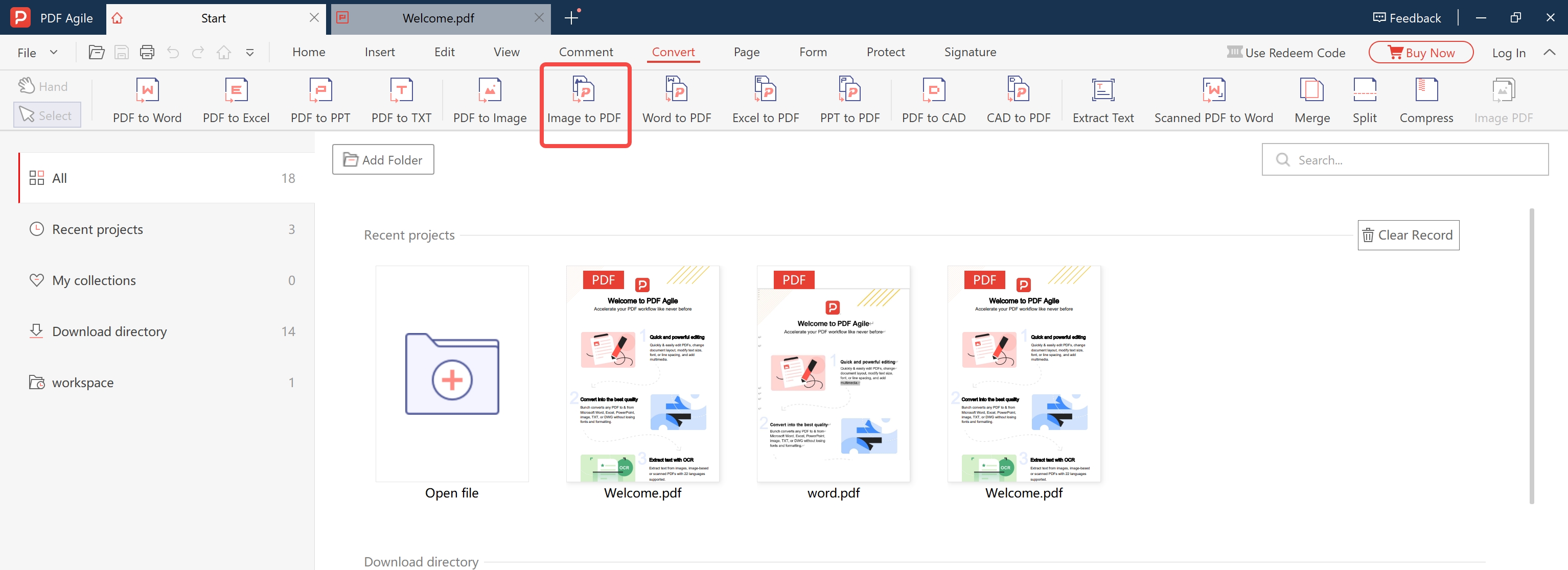
Convert Your Image to PDF
Open PDF Agile → Convert → Image to PDF. Load your PNG, JPG, TIFF, or BMP file. Click Convert. This produces a standard PDF containing your image, ready for OCR.
Run OCR and Export
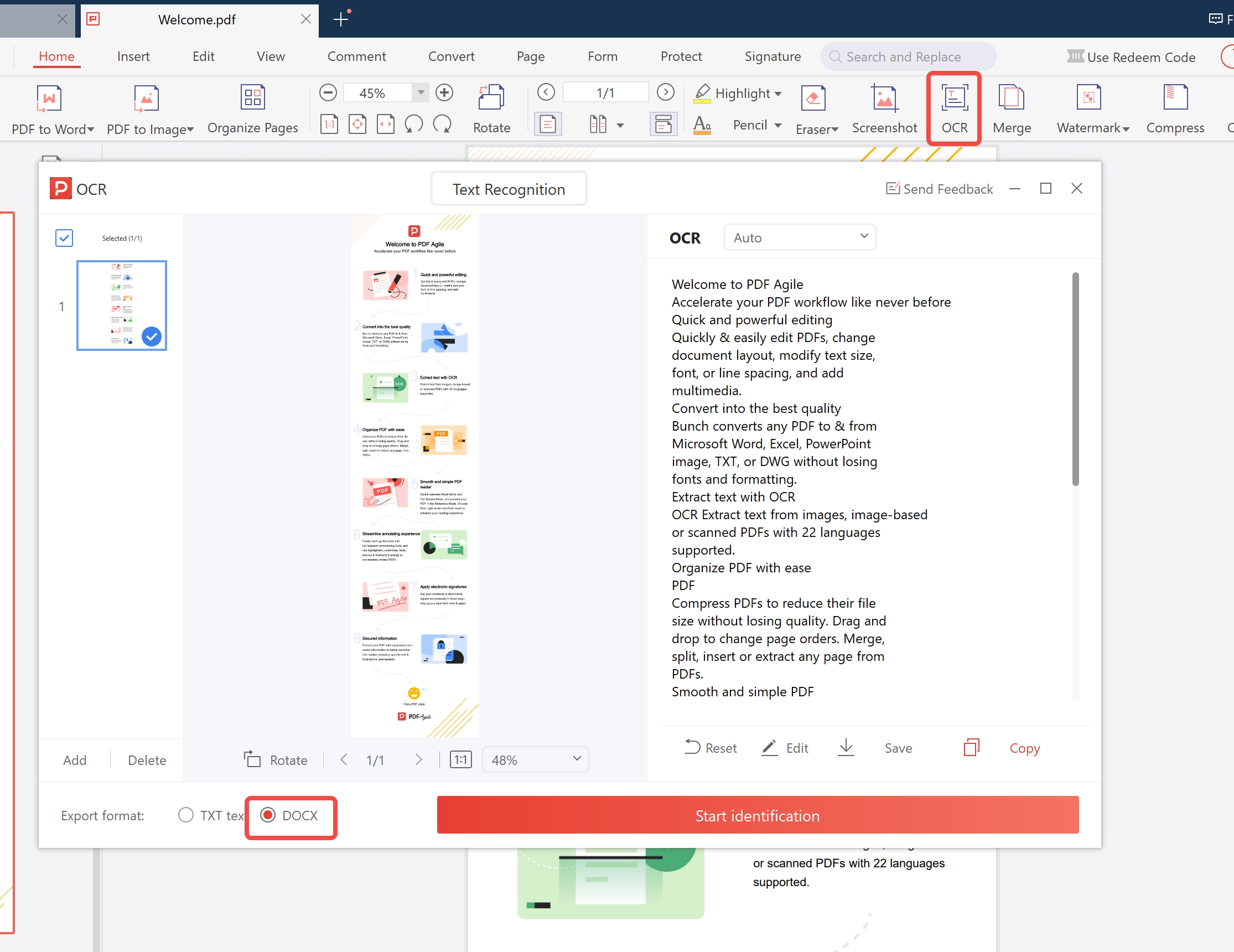
Open PDF Agile → OCR → Scanned PDF to Word (or Searchable PDF / Excel). Load the PDF from Step 1. Select document language. Click Start OCR. The output contains fully editable text with layout preserved.
What Affects Image-to-Text Accuracy
Image Resolution
Higher resolution = better accuracy. For screenshots taken at standard display resolution (96–144 DPI), accuracy is high for standard fonts. For photos of printed documents, shoot at 300 DPI equivalent or higher — this means the text characters should be at least 20–30 pixels tall in the image.
Contrast and Lighting
Dark text on a light background achieves the best results. Images with shadows, glare, or low contrast can reduce accuracy. PDF Agile applies automatic contrast enhancement before recognition, which helps with many real-world photo conditions.
Font Type
Standard printed fonts (serif, sans-serif) achieve 99%+ accuracy. Decorative fonts, logos with stylized text, and very small text (<8pt equivalent) may have reduced accuracy.
Image Format vs. OCR Accuracy
| Image Format | Typical Accuracy | Best Use Case |
|---|---|---|
| TIFF (300 DPI+, uncompressed) | ✅ 99%+ | Scanned archival documents |
| PNG (screen capture / screenshot) | ✅ 98–99% | Screenshots, UI captures |
| JPG (high quality, low compression) | ✅ 96–98% | Photographed documents |
| JPG (high compression / small file) | ⚠️ 85–93% | Review output carefully |
| BMP (uncompressed bitmap) | ✅ 98%+ | Legacy system exports |
| Low-res photo (<150 DPI) | ⚠️ 70–80% | Pre-process: increase contrast first |
Frequently Asked Questions
Can I extract text from a screenshot taken on my phone?
Yes. Modern smartphone screenshots are typically 1080p or higher, which gives excellent OCR accuracy for printed text. Transfer the screenshot to your PC and process it with PDF Agile.
Can I extract text from multiple images at once?
Yes. Use Batch OCR mode to process an entire folder of images in one operation. All output files are saved with the original filename in your chosen output directory.
Does it work for non-English text in images?
Yes. PDF Agile supports 50+ languages. Select the language(s) present in the image before running extraction for best results.
What output formats are available after text extraction?
You can export to plain text (.txt), editable Word (.docx), or searchable PDF. Plain text is fastest for pasting into other apps; Word preserves paragraph structure; searchable PDF keeps the original image with a hidden text layer for archival use.
Can I extract text from an image that contains a table?
Yes. PDF Agile's layout analysis detects table regions within images and reconstructs row/column structure in the output. Export to Word for an editable table, or use the OCR PDF to Excel feature to extract directly to a spreadsheet.
What if my image has shadows, glare, or low contrast?
PDF Agile applies automatic pre-processing (contrast enhancement, deskewing, noise reduction) before recognition. For heavily degraded images, manually adjust brightness and contrast in any image editor before loading. Ideal: dark text, white background, no shadows.