OCR Scanned PDF to Editable Word — Layout Reconstruction
Transform image-only scanned PDFs into fully editable Word documents. Powerful OCR detects paragraphs, tables, and columns — converting scanned PDF to editable Word with high accuracy, offline.
What Makes Scanned PDF OCR Difficult
A scanned PDF is a photograph embedded in a PDF container — there is no text layer. Traditional OCR treats every character independently and reassembles them left-to-right, losing table structure and multi-column layout. PDF Agile's OCR engine first classifies each page region (paragraph, table, header, footnote), then applies specialized recognition for each type, producing output that maps accurately to a Word document's structure.
How to OCR a Scanned PDF to Word (3 Steps)
Open PDF Agile and Launch OCR
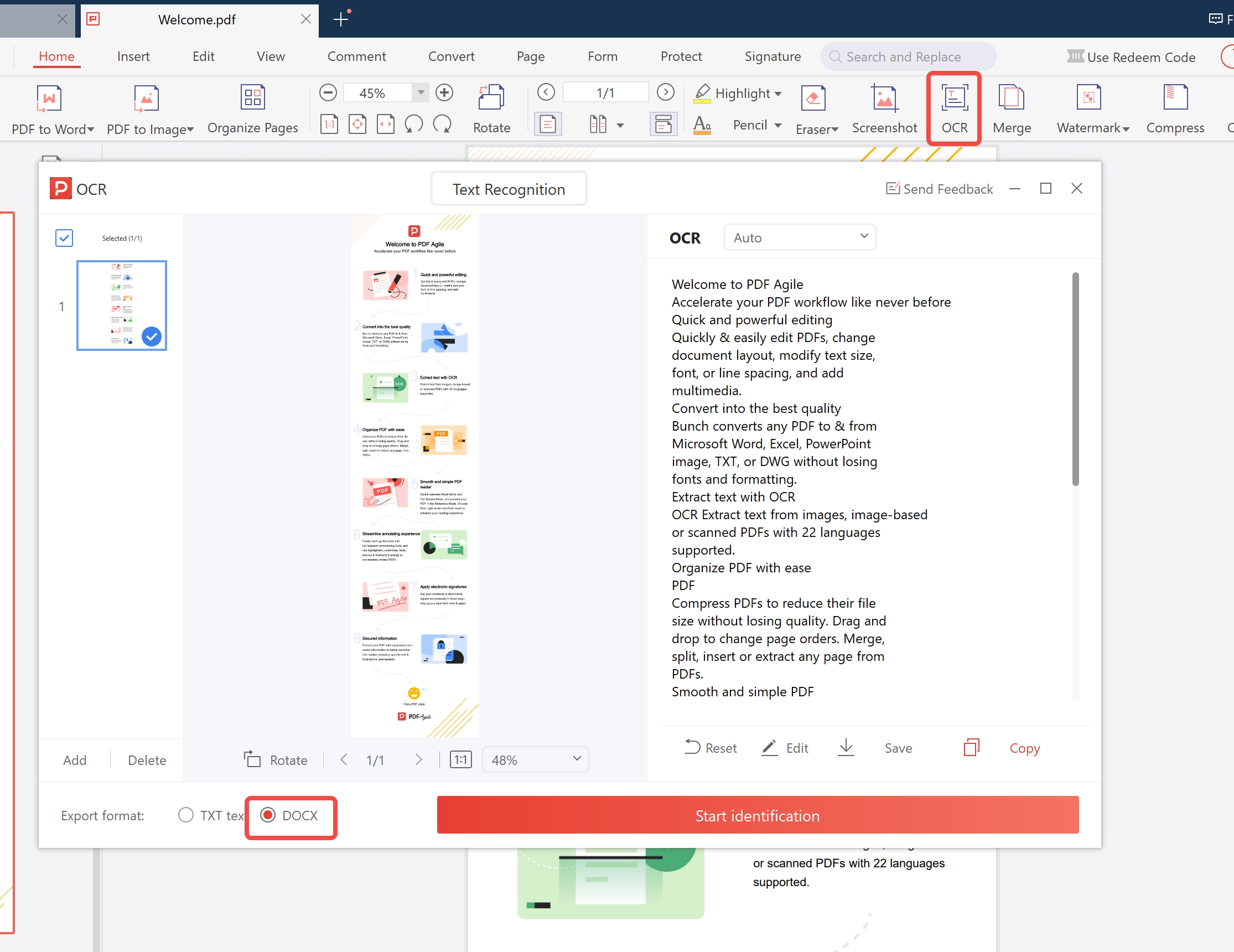
Open PDF Agile → OCR → Scanned PDF to Word.
Load Your File and Choose Language
Load your scanned PDF. Choose language(s) — supports 50+ languages simultaneously.
Start OCR and Export
Click Start OCR. Output .docx opens with editable text, preserved tables, and heading structure.
| Document Type | PDF Agile OCR | Standard OCR Tool |
|---|---|---|
| Printed text, clean scan (300 DPI+) | ✅ 99%+ accuracy | ✅ 96%+ accuracy |
| Low-quality scan / faxed document | ✅ 92%+ accuracy | ⚠️ 75-82% |
| Multi-column academic paper | ✅ Columns preserved | ⚠️ Columns merged |
| Tables with borders | ✅ Row/col structure intact | ⚠️ Often plain text |
| Mixed-language document | ✅ Auto-detect multilingual | ⚠️ Single lang only |
| Files stay on your device | ✅ 100% local | Depends on tool |
Tips for Best OCR Results
Scan at 300 DPI Minimum
OCR accuracy degrades significantly below 300 DPI. If you're digitizing physical documents, use a flatbed scanner at 300–600 DPI. Smartphone camera scans work, but use a scanning app (not a photo app) to ensure deskewing and contrast correction are applied.
Select the Correct Document Language
PDF Agile supports 50+ languages. For documents with mixed languages (e.g., an English paper citing French sources), enable multi-language mode to prevent characters from one script being misread as another.
Use "Layout Preservation" Mode for Complex Documents
For academic papers, legal documents, and multi-column reports, enable Layout Preservation mode. This instructs the OCR engine to reconstruct the document's spatial hierarchy rather than extracting text as a single flow.
Frequently Asked Questions
How accurate is OCR on a scanned PDF?
For clean 300 DPI+ scans of printed text, PDF Agile achieves 99%+ character accuracy. Low-quality scans and unusual fonts reduce accuracy. Handwritten text uses the separate handwriting recognition mode.
Does OCR work on password-protected scanned PDFs?
You need to enter the document password before OCR processing. PDF Agile will prompt for the password when loading a protected file.
Can I OCR a scanned PDF and keep it as PDF (not Word)?
Yes. Choose Output: Searchable PDF instead of Word. PDF Agile adds an invisible text layer to the original PDF, making it searchable and copy-paste enabled while the visual appearance remains identical.
Can I OCR only specific pages of a large scanned PDF?
Yes. Use the page range selector when loading your PDF to specify which pages to process. Useful for large documents where only certain sections need OCR.
Why does my OCR output have garbled characters?
The most common cause is a wrong language selection — processing a German document with English OCR causes character substitution errors. Other causes: scan resolution below 200 DPI, heavy JPEG compression, or unusual fonts. Select the correct document language and re-scan at 300 DPI+ for best results.
What are the system requirements for PDF Agile OCR?
PDF Agile runs on Windows 7 or later (Windows 10/11 recommended). Minimum 4 GB RAM; 8 GB recommended for large batch jobs. About 500 MB disk space for installation. No internet connection required for OCR processing.